Familiar compression controls, with an extra dimension of control over the detector.
01 / Spatial side-chain
Point the detector where it matters.
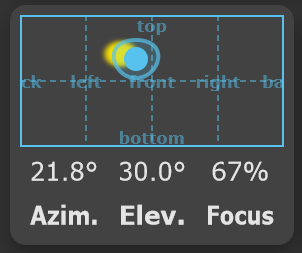
Point a virtual microphone anywhere in your sound scene to choose which sources drive the compressor. Adjust its azimuth and elevation to aim it, then change its focus to control the microphone’s directivity.
This gives you control over the signal driving the compression while the processing preserves the spatial relationship across the Ambisonic sound field.
02 / Gain reduction display
Follow every change in level.
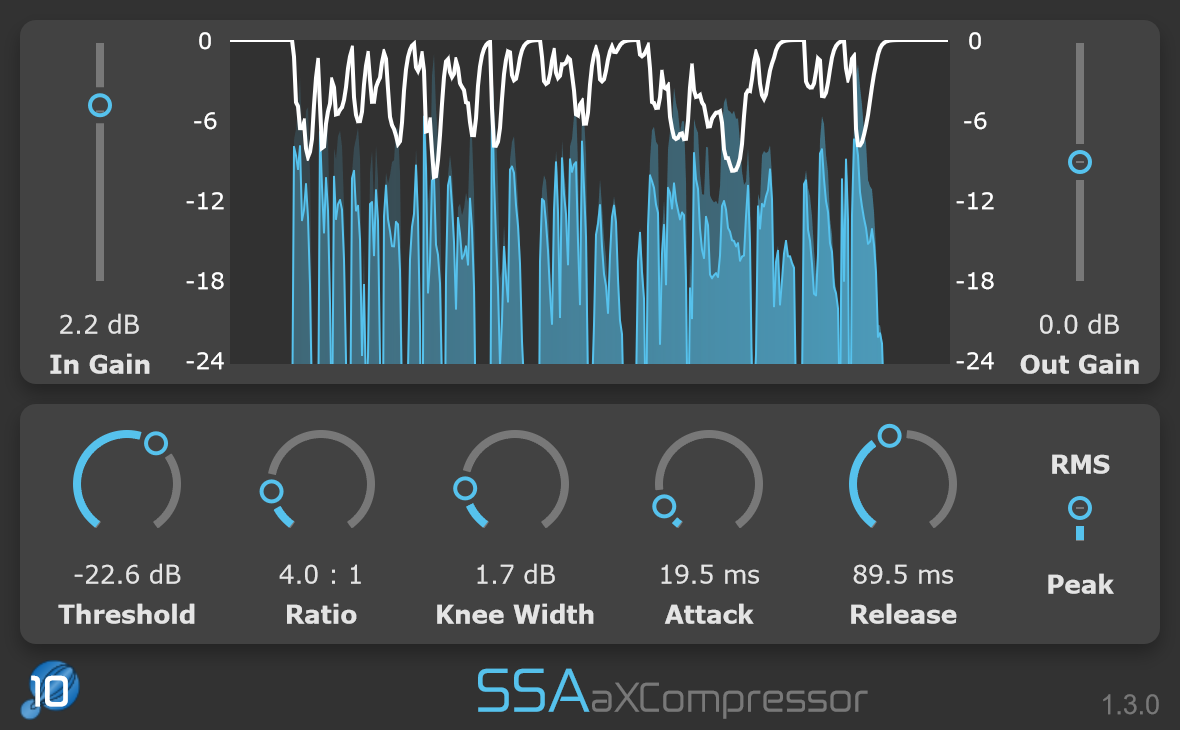
See the amount of gain reduction applied over time. Use the display to follow how the compressor responds as you adjust your settings.
Right-click the display to choose a different range, whether you’re watching subtle changes or stronger compression.
03 / Familiar controls
Bring your mixing instincts.
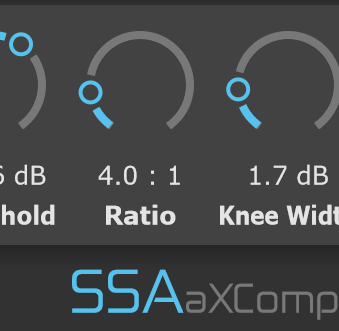
Set your threshold, ratio and timing just as you would with a stereo compressor. Choose peak or RMS detection and shape the transition into compression with a variable knee.
The workflow stays familiar as your session moves into three dimensions.
The full control set
Fine control, from input to output.
Input gain
Boost or cut the signal level entering the compressor.
Output make-up gain
Adjust the output level to compensate for the level reduction caused by compression.
Threshold & ratio
Choose the level at which compression begins and how strongly signals above it are compressed.
Knee width
Control how smoothly compression begins. A zero-width knee gives a hard transition.
Attack & release
Set how quickly compression engages above the threshold and recovers after the signal falls below it.
RMS or peak detection
Choose whether the detector responds to average signal levels or peaks.
Azimuth & elevation
Aim the virtual side-chain microphone at a chosen direction in the sound scene.
Focus
Adjust the virtual microphone’s directivity to change which sources drive the detector.
Ambisonics in, Ambisonics out
Keep the scene connected.
aXCompressor applies dynamic range compression while preserving the spatial relationship between the sounds in your immersive scene.
Your signal format stays intact.
Input can use any Ambisonic channel format with the W channel on the first input. The output retains the input format.
Plan for your channel count.
First order uses 4 channels, third order uses 16, and tenth order uses 121. Your DAW must support the required track width and plugin routing.
a1 handles first order; a3 handles up to third order; aX handles up to tenth order. Test the trial in your intended DAW and session before purchasing.
Find your fit
Choose your version.
The same compressor, with the Ambisonic order range your work needs.
* Maximum order depends on your DAW.
Formats & requirements
Check the fit for your studio.
Your host needs internal routing that supports the required number of Ambisonic channels. Check the current host documentation and test your session with the free trial.
Intel or Apple Silicon (Universal Binary) macOS 10.13 or later · 4 GB RAM
Windows
64-bit Windows 10 or later 4 GB RAM
Ambisonic versions
a1: first order (4 channels) a3: up to third order (16 channels) aX: up to tenth order (121 channels)
Input & output
Ambisonic input with W on the first channel. Output retains the input channel format.
Host routing
Track width and plugin routing must support the chosen order.
A little more detail
Good questions.
Which Ambisonic order do I need?
Match the version to your source material and your DAW. a1 handles first order, a3 handles up to third order, and aX handles up to tenth order in compatible hosts.
Can I try the plugins first?
Yes. Download a trial from SSA Plugins and explore the full functionality for 15 days in your own workflow.
Can I upgrade to a higher order later?
SSA Plugins offers an upgrade policy. Contact SSA Plugins through the current store for your upgrade options and voucher.
Hear it in your own mix.
Explore the full capabilities with a 15-day free trial.